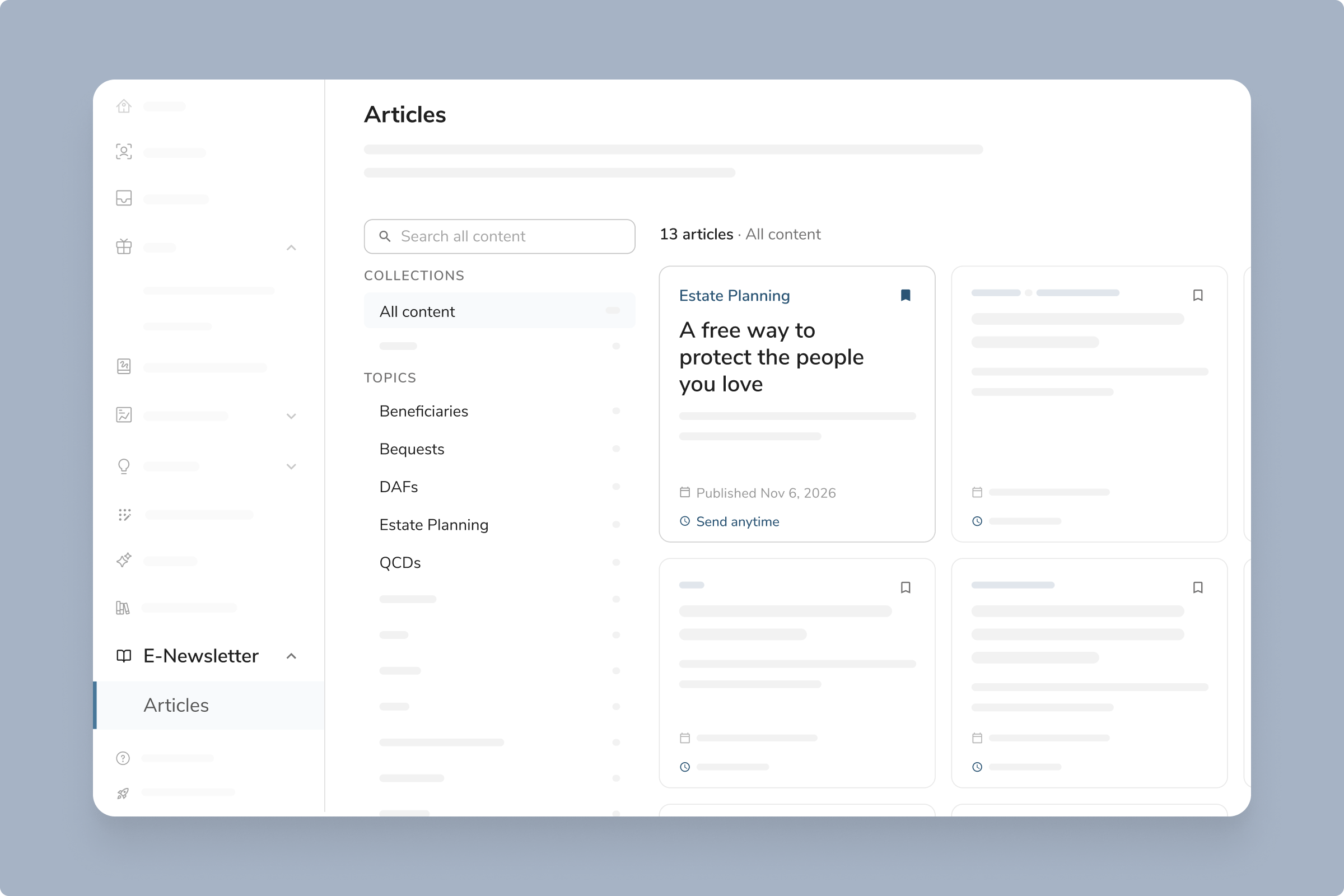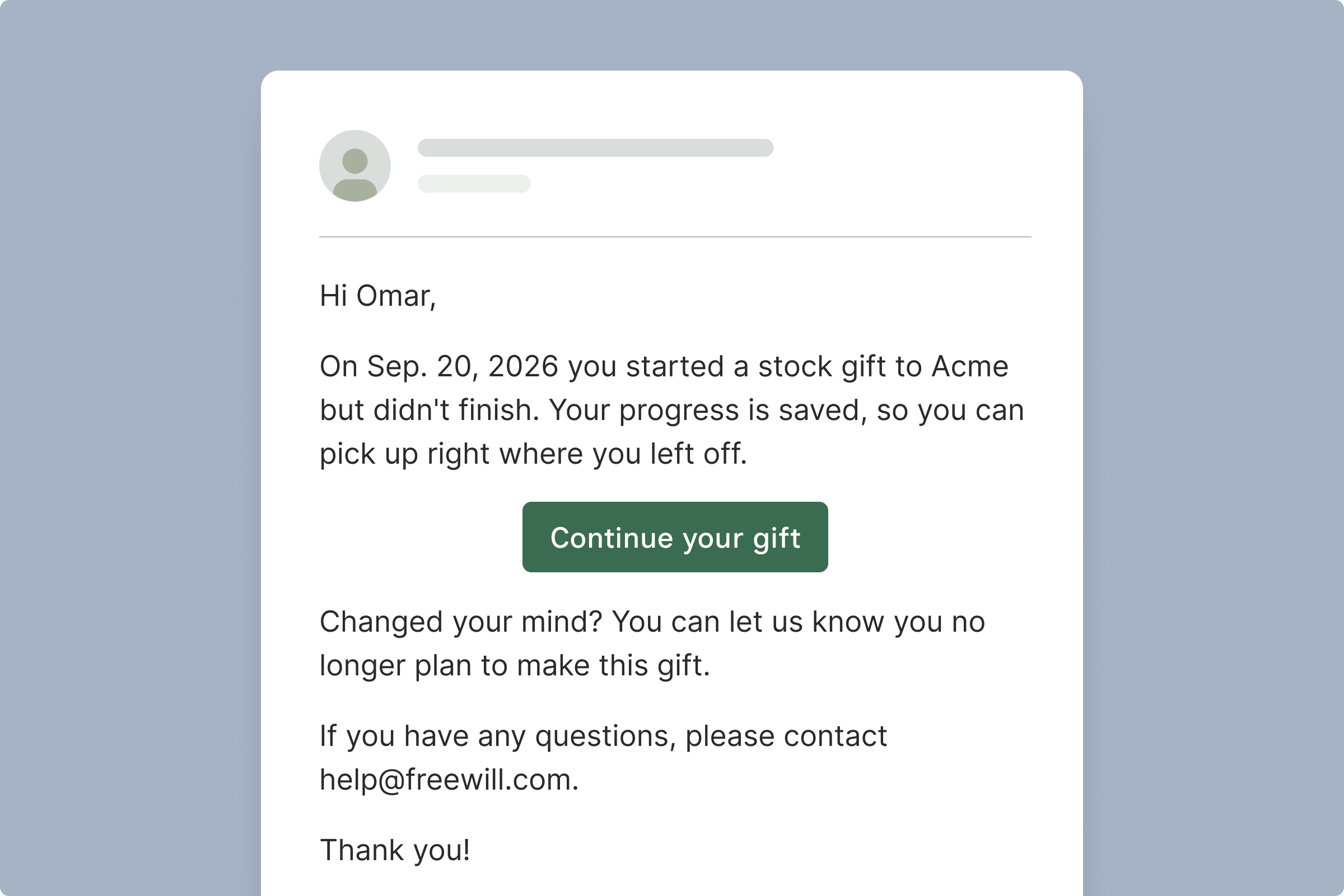
Let donors complete stock, DAF, QCD, and crypto gifts without leaving your website.
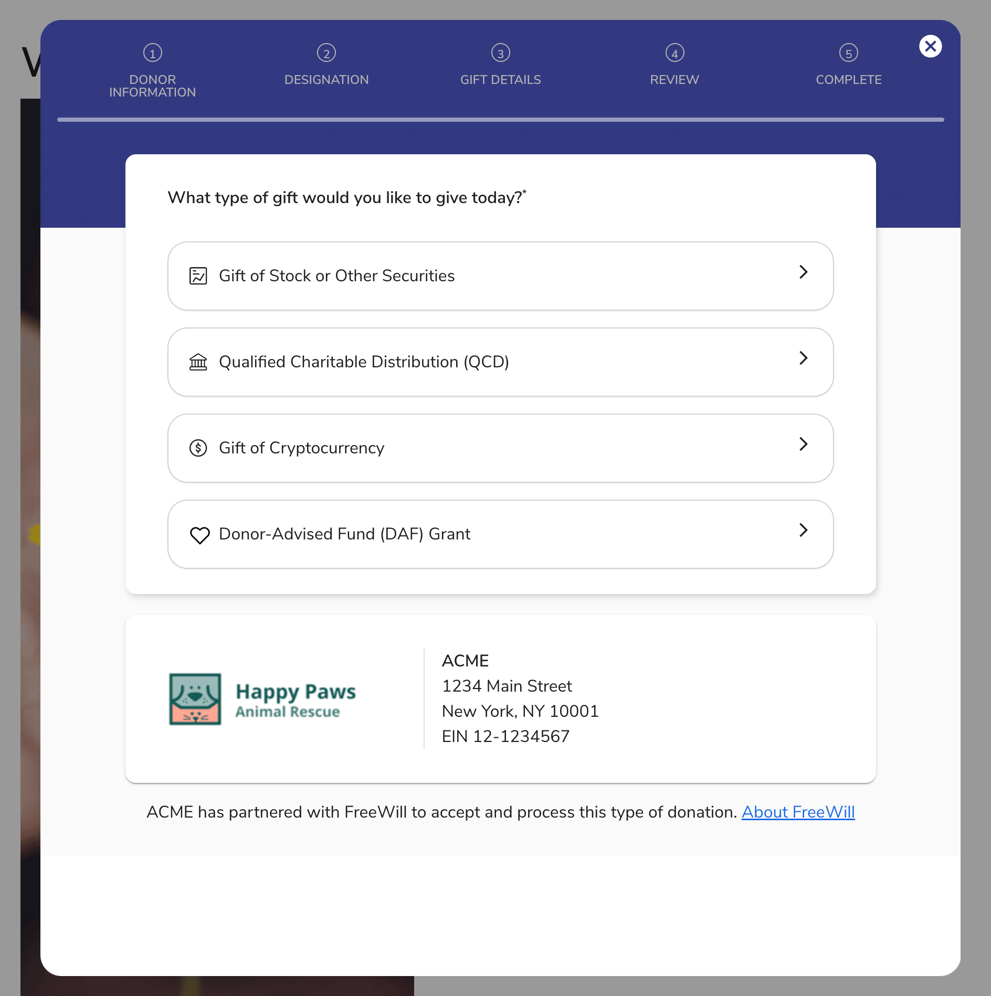
Donors can now complete Smart Giving Suite gifts without ever leaving your website. The embeddable Smart Giving Widget opens the gift flow in a pop-up right on your site.
Donors can stay in your branded environment from start to finish, which helps build trust and keeps the giving process simple.
How it works:
- In Portal, go to Customizations > Widgets. There you’ll find two short code snippets: one that installs the widget, and one that connects it to your call-to-action (CTA) button.
- Your web team adds both snippets to your site. The widget works with popular website platforms like WordPress, Squarespace, and Wix.
- You can set up your CTA buttons to open a specific gift type, like a “Give Stock” or “Give Crypto” button. You can also open the full gift flow with a general button like “Give Now.”
- When a donor clicks your button, the gift flow opens in a pop-up window on your site. The donor experience is the same one they’d see today, just without leaving your page.
- Donors still receive confirmation emails and tax receipts from FreeWill, just as they do now.
Want to track which campaigns drive gifts through the widget? Add a campaign ID when you install it. Gift and campaign tracking details will then show up alongside your other Smart Giving gifts in Portal.
Please know your existing FreeWill-hosted Smart Giving pages will keep working, so you can use the widget alongside your current links.
Who this is for:
This feature is available to all Smart Giving Suite partners, at no additional cost. Interested in adding the Smart Giving Suite to your FreeWill partnership? Click here to schedule time with your Account Manager.
Your next steps and resources:
- Watch the short video above for a walkthrough of the widget in action.
- Go to the Customizations > Widgets tab in Portal to find your code snippets.
- Share them with your web team to install on your website. A full guide can be found in this Help Center article.
Need more support?
- Read this Help Center article for FAQs and step-by-step setup instructions.
- Reach out to partnersupport@freewill.com.